Posts

TDS - RPU (Return Preparation Utility) and Windows 7
Image
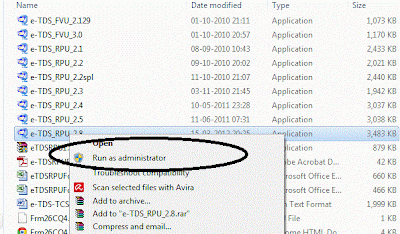
Follow below steps :- 1.  You must have Administrator rights 2. Go to Control Panel -> User Accounts -> Click on "Change User Account Control Settings" 3.  Set to "Never Notify" 4.  Now re-install your software and you will be able to install successfully.. How to install NSDL RPU in Windows 7  Now-a-days,  Windows 7 is operating systems in new computers.    Installation of NSDL e-tds R.P.U.  in windows 7 requires some knowledge for installation.   A person who knows "Run as Administrator " do not face any difficulty in installation.  Two times "Run as administrator" is required for proper installation.  Right click on the step up file and use Run as Administrator. at the time of installation of setup. First time running of R.P.U.     

Recovering files on flash/pen or external drive changed to shortcuts

If you did not format your flash drive, then check whether the files are not in hidden mode. Plug your drive now Click on “Start” –> Run–> ( Press Window key + R ) type cmd and click on OK. Enter this command. attrib -h -r -s /s /d g :*.*       Here  g is the drive letter. It varies, you can get this letter in My computer  Press Enter Now check for your files in on the pen drive Delete the unnecessary shortcuts. Note: Replace the letter g with your flash drive letter.

The Internet Explorer icon is missing from your desktop

Method 1: Create a shortcut to Internet Explorer on your desktop Important Windows 7 no longer supports the ability to modify the registry to get the special Internet Explorer icon to appear on your desktop. This change was made to ensure Internet Explorer could be removed easily for compliance reasons. The only way to add the Internet Explorer icon to the desktop in Windows 7 is to create a shortcut. To create a shortcut to Internet Explorer on your desktop, follow these steps: Click Start, and then locate the Internet Explorer icon on the Start menu. If you do not see the Internet Explorer icon on the Start menu, look in the Programs or the All Programs folders on the Start menu.Note If you cannot locate the Internet Explorer icon on the Start menu, follow these alternative steps or, if you are not using Windows 7, use Method 2 . Right-click and drag the Internet Explorer icon from the Start menu to your desktop, and then click Create Shortcuts Here, or click Copy Here.A shortcu...

AHCI - RAID vs IDE HDD - Boot failure issue

Installing AHCI driver in Windows after the installation of Windows XP results in boot failure. You can get PXE error or "No boot device could be detected" messages or continuous Restart may happens while you boot your system in Windows XP. The solution for this issue is change the SATA mode in the BIOS from AHCI to IDE. You can access the BIOS settings by hitting F2 while BIOS is loading. Change the HDD SATA mode from AHCI(usually called RAID by Intel) to IDE. Change first boot disk priority to HDD, then DVD/CD, then Network, etc. Before exiting from BIOS press F10 to save this changes and reboot the system. The OS will loaded. Thnaks

Optimal MTU size for Router Settings in Partial loss of internet connection

General instruction for finding your optimal MTU size Go to Start and select Run. Set router to MTU 1500 to start with. Start RUN Type in cmd (Windows 2000/XP/Vista/7) or command (Windows 98/ME) into the box . Hit the enter key or click OK At the DOS prompt, type in ping bbc.co.uk -f -l 1492 and hit the Enter key. If you get the response "Packet needs to be fragmented but DF set", lower the size the packet in increments of +/-10 (e.g. 1472, 1462, 1440, 1400) until you have a packet size that does not fragment. Now increase the packet size from this number in small increments until you find the largest size that does not fragment. Add 28 to that number (IP/ICMP headers) to get the optimal MTU setting. For example, if the largest packet size from ping tests is 1462, add 28 to 1462 to get a total of 1490 which is the optimal MTU setting and can be put in your router's settings! Hope this helps some of you!? Source : NETGEAR site.

Intel Centrino Wireless-N : Slow internet connection

Image
When the system connected to the router in wired mode we can get the very good internet speed. The Problem identified with Intel Centrino Wireless-N 1030 and 6230 adapter with Bluetooth has low internet speed when we connect the Laptop to ADSL2+ Modem Wireless-N router. This type of router can support upto 150/300 mbps in Wireless - N mode. The network icon in the task bar shows that the system has intenet access or limited connectivity. But you may experience very low speed internet. This is very specific to the wireless -N adapter 1030 and 6230. Solution: In the router side Open the router by entering the default IP of router 192.168.0.1 or 192.168.1.1 user: admin password: password Under setup select the wirless settings page In the mode section select g & b as mode and save this configuration and logout the router and reconnect the laptop with router in wireless mode. Now U can have the very good browsing experience in the 802.11g mode even with ...

BSNL DataOne and NetGear DGN1000 - Configuration

Login to the ADSL2+ Modem Router   http://192.168.1.1/ User name: admin PW: password Basic Settings Does your internet connection require a login? Yes Encapsulation: PPPoE (PPP over Ethernet) Login: Password: Service name: Internet IP address: Get dynamically from ISP (or if you had obtained a static IP from BSNL on request, you can enter it here) Primary DNS: 218.248.255.145 Secondary DNS: 218.248.255.146 NAT: Enable Note: For the DNS fields, please use the DNS IPs that was provided to you initially. If you cannot access certain websites over WiFi, it is most certainly because of wrong DNS addresses. If you are not sure of your old DNS addresses, try the IPs 8.8.8.8 and 8.8.4.4 (Google Public DNS) Now click on Apply and wait for a moment while the page refreshes with the updated settings. Then click on ADSL Settings. ADSL Settings Multiplexing Method: LLC-Based VPI: 0 VCI: 35 DSL Mode: Auto (Multi-Mode) Now click on Apply.